



Speaker identification in your transcripts
Turn on Recognize speakers when you upload and each line shows who said it, for up to 4 voices per file. It’s on every plan, Free included, and you can rename, merge and reassign speakers afterward.
Transcribe a recording
Launching November 2026
How speaker identification works
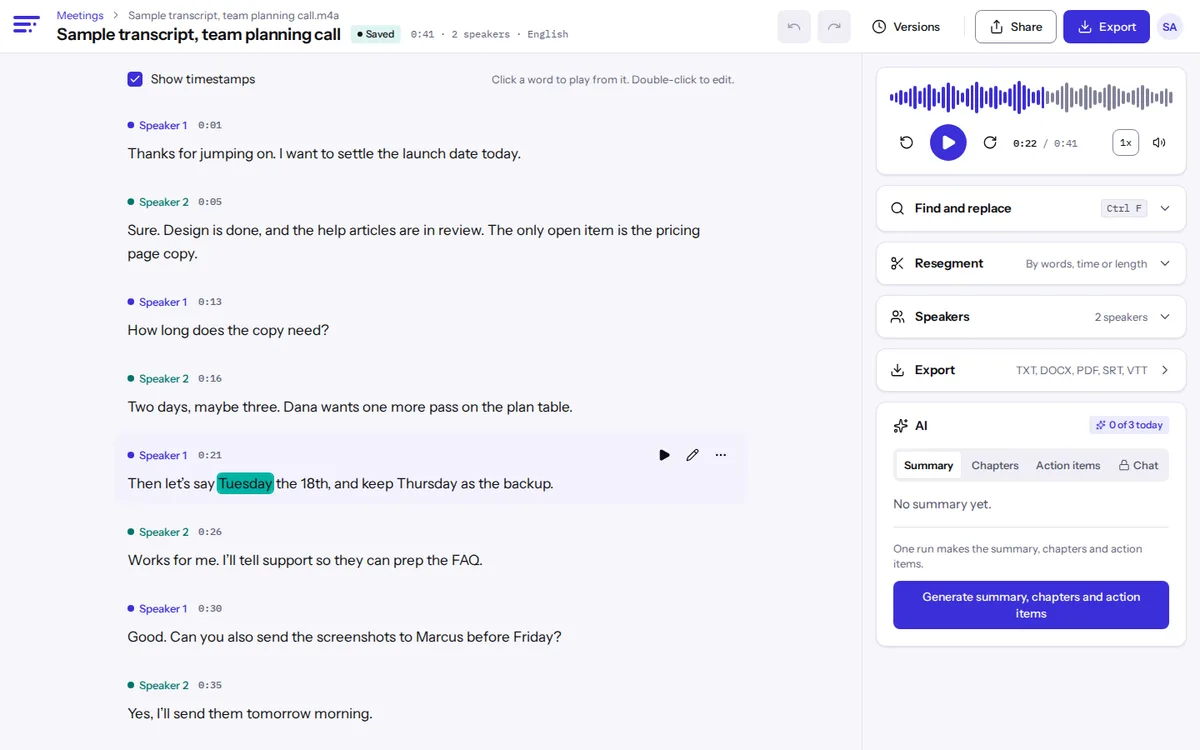
The technical name is diarization: splitting a recording by voice. A separate speaker model runs over the whole file, then each word is matched to the voice that was talking when it was said. You see a label and a timestamp at every change of speaker.
Labels start as Speaker 1, Speaker 2 and so on. The model tells voices apart but has no idea who anyone is, so naming takes one edit per person.
Four voices per file, and what that means
Up to 4 different voices in one file covers most interviews, podcasts, sales calls and small team meetings. Two to four people each get their own label.
A fifth voice gets merged into one of the four, and you reassign those lines by hand, so a board meeting of eight means some cleanup. Files over 3 hours are labeled in 3-hour parts: the editor shows labels like Speaker 1 (part 2), and one person can carry different labels in different parts.
What makes speaker labels go wrong
Crosstalk
When two people talk at once, their words can land on one label. A quick “right” or “yeah” often goes to the wrong person.
Similar voices
Two speakers with close pitch and pace, like siblings or co-hosts sharing one mic, can trade labels partway through.
A fifth speaker
There’s no fifth label. The extra voice gets folded into one of the four.
One mic, far away
A speakerphone or room mic picks up echo, which blurs voices together.
None of these change the words in the transcript. They only change who a line is credited to, and that’s quick to fix in the editor.
Rename, merge and reassign speakers
Rename
Change Speaker 1 to a real name once, and every line with that label updates, in the editor and in your exports.
Merge
One person split across two labels becomes a single speaker again.
Reassign a line
Move one line to the right person when a short reply landed on the wrong label.
Export with names
Turn on speaker names when you export DOCX, PDF, TXT, SRT or VTT. CSV and JSON carry the speaker on every row.
Recording tips for better speaker labels
- Give each person a mic if you can, or seat everyone about the same distance from one.
- Let people finish before the next one starts. Labels follow clean turns best.
- Have everyone say their name near the start, so you know who Speaker 2 is.
- On a video call, record the call itself. Don’t point a phone at a laptop speaker.
You don’t need a separate track per person. One mixed file is enough.
Where labeled transcripts help most
Labels matter most when you quote someone or follow a back-and-forth. Reporters confirm who said a line before it goes to print (interview transcription). Podcasters credit hosts and guests in show notes (podcast transcripts). Teams want to know who agreed to which task (meeting transcription).
Voices are matched on our own GPUs, the same as the rest of transcription, and your audio is never sent to any AI company.
Speaker label questions
Is speaker identification free?
Yes. Recognize speakers works on the Free plan with the same 4-voice limit paid plans have.
How many speakers can Textspert identify?
Up to 4 in each file. More voices share those labels, and you can reassign lines afterward.
What is diarization?
It’s the step that splits audio by who is speaking. It runs for you whenever Recognize speakers is on.
Does it know who the speakers are?
No. It tells voices apart but doesn’t recognize people. Rename each label once and the name follows that voice everywhere.
Do speakers stay consistent in long files?
Within each 3-hour part, yes. A longer file is labeled part by part, so check the names in each one.
Does it work on a phone call recording?
Yes, if both sides are on the recording. Phone audio is narrow, so voices can sound alike; check labels on short replies.
Can I put speaker names in subtitles?
Yes. Turn on speaker names when you export SRT or VTT, and each caption starts with the name.
Pages where speaker labels matter
- Interview transcriptionFor reporters checking quotes and researchers coding interviews, with every line tied to the audio.
- Podcast transcriptEpisode transcripts with hosts and guests labeled, plus draft chapters for show notes and YouTube.
- Meeting transcriptionUpload a Zoom, Teams or Meet recording and get notes and action items, with no bot on the call.
- Video to textGet a transcript or SRT and VTT subtitles from MP4, MOV, MKV and other video files.
- Private transcriptionYour files, sharing and deletion stay in your control.
Compare plans on the pricing page, or read our short privacy promises.
Join the waitlist
Launching November 2026. Be first to hear when Textspert opens.
We'll only email you about the launch. Unsubscribe anytime. Privacy